
Read more
- Navigation at the scanner
- How to place bets with a help of scanner
- Deleting Arbs from the Scanner
- Direction of Odds change
- What do Multi-Coloured Surebets Stand for?
- Changing from Arb to Comparison Service
- Arbs sorting
- New arb alert
Navigation at the scanner
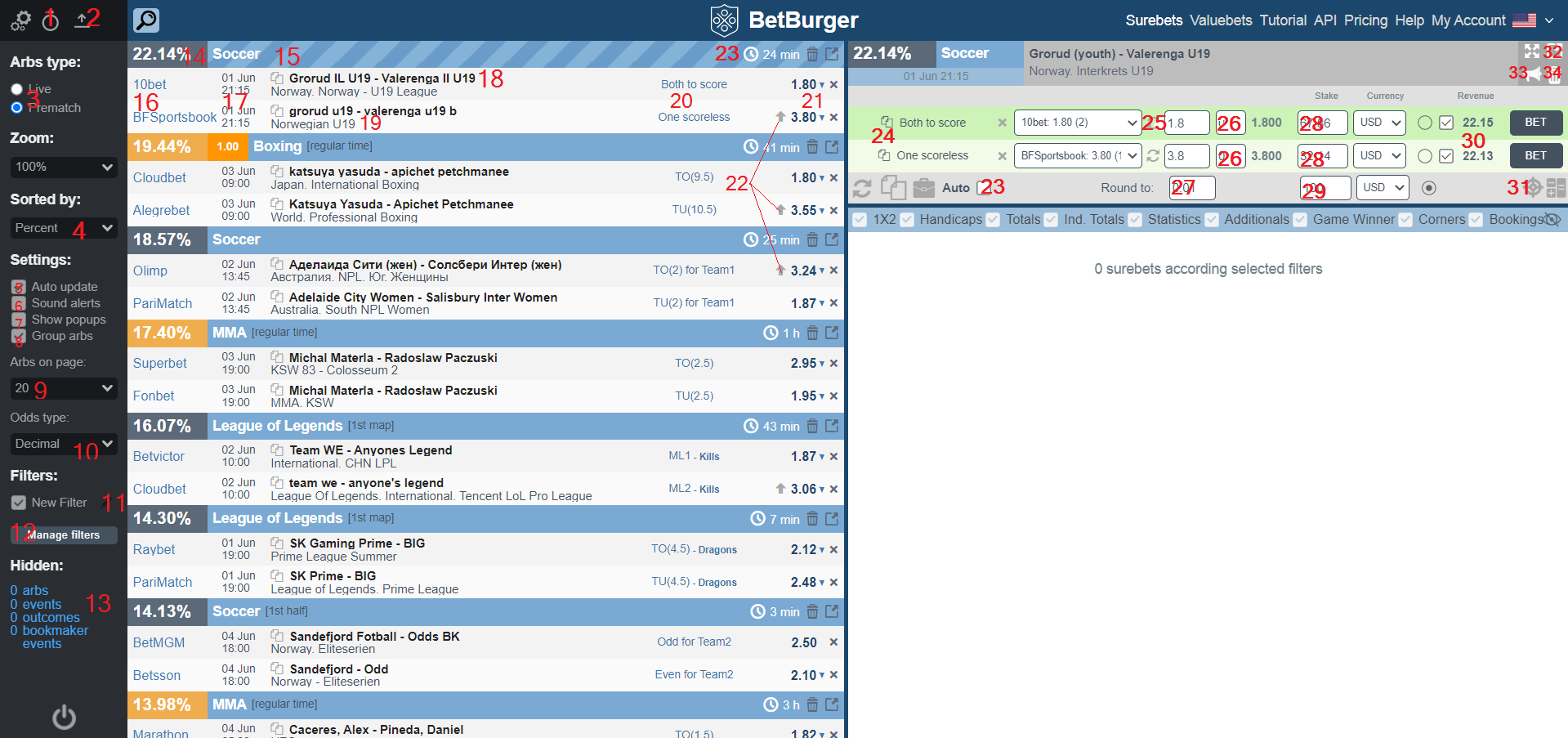
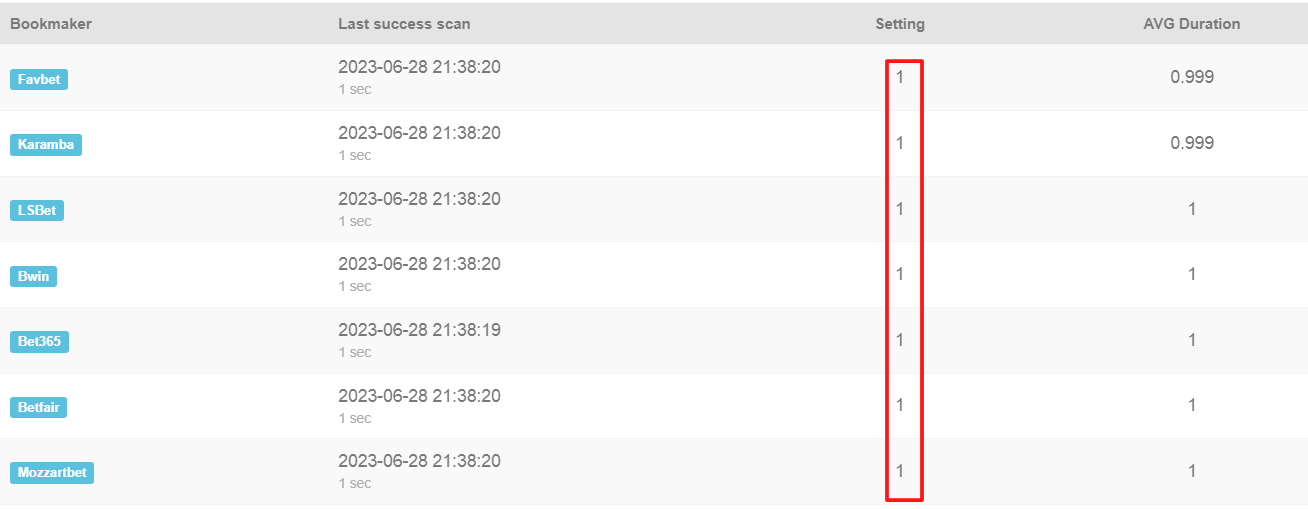
- Bookmaker scanning speed. For example, if your bookmaker scanning interval is set at 10, it means that our scanner updates the bookmaker’s odds every 10 seconds.
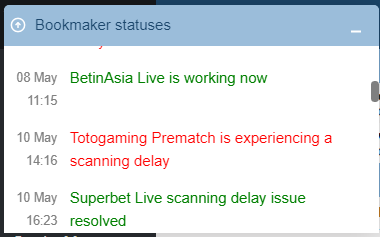
- Bookmaker statuses. When issues arise where a bookie stops being scanned or experiences delays, this information is displayed in the status widget until recovery is complete.
- Bet type selection. Switch between live and prematch modes with a single click.
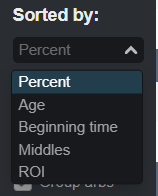
- Displaying surebets based on specific parameters: profitability, arb age, match start time, middles, and ROI.
- Automatic arb refresh. If you don't want arbs to refresh in the scanner, you can uncheck this option, though it's not recommended.
- Sound notification of new arbs. Receive a sound notification whenever a new arb appears in the scanner.
- Text notification on new surebets/ valuebets. Text notifications will appear on your desktop or at the top of browser windows when new arbs or valuebets are found.
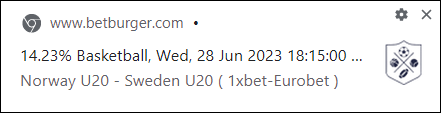
- Surebet grouping. You can choose to disable this feature, which would display all arbs for a specific event. Useful when your settings display only a small number of arbs.
- Number of arbs per page. Depending on your scanner settings, you can see anywhere from 0 to 20 arbs on the main page.
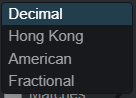
- Odds format selection. Choose the odds format that's convenient for your bookmaker.
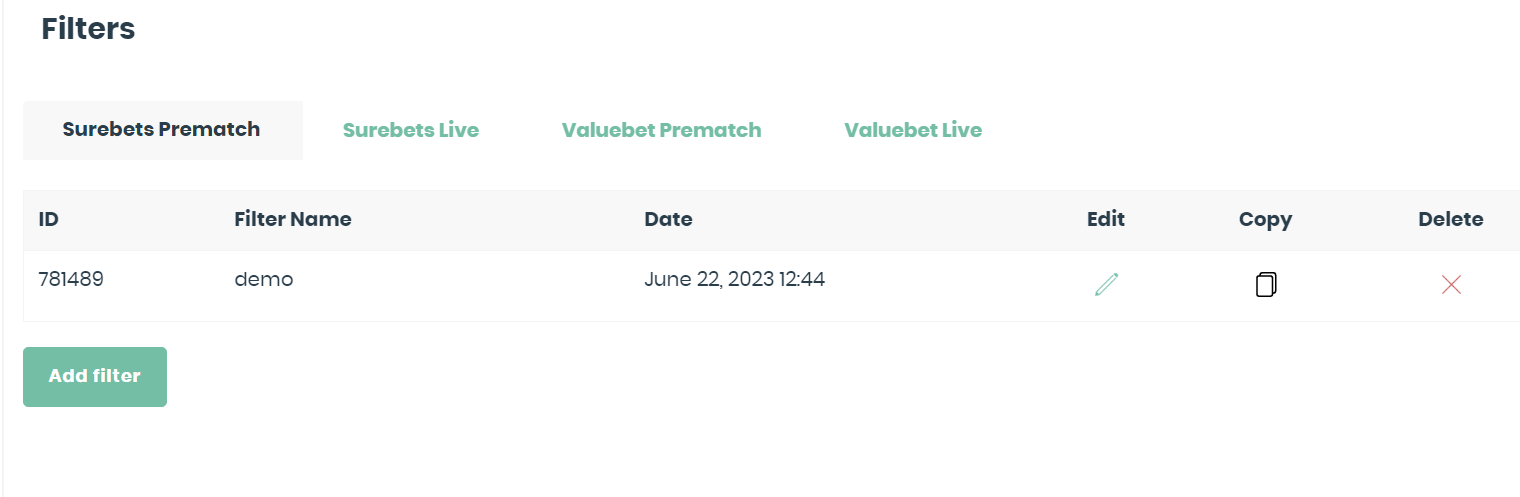
- Your filter’s name. Click on the pencil icon to quickly edit the main settings.
- Filter settings. Here you can edit, delete, or create a new filter.
- Hidden surebet counter. Shows how many arbs, events, and outcomes you've excluded from your view. You won't receive notifications on them anymore.
- Surebet profitability ratio. This is the profitability percentage of a bet relative to the invested amount, showing potential profit in percentage terms.
- Sport Type. The sport on which the arb is based.
- Names of bookmakers involved in the arb.
- Event start time.
- Name sports event.
- League name.
- Sports outcome.
- Bookmaker odds for the outcomes.
- Direction of the last odds change at the bookmaker.
- Automatic update of odds in the calculator. This checkbox (unchecked by default) controls whether odds are automatically updated in the calculator.
- Copy team name. Allows you to quickly copy the team's name, useful for quickly finding the team in your bookmaker, especially if you have problems with automatic navigation from the scanner or prefer to do the redirect manually.
- Manual odds update.
- Bookmaker’s commission amount. Shows the commission set by the bookmaker or exchange. You can change this value in the scanner settings, and the calculator will use it for arb calculations.
- Rounding function for bet amounts. The rounding feature not only helps prevent bookmakers from quickly recognizing you as an arber but also saves time when entering the amounts at the bookmakers.
- Bet amount. The size of the bet to be wagered on the outcome is calculated automatically to ensure equal profit on each side of the arb for any outcome.
- The total bet amount. The default value is 100, but you can enter any other value you wish. You can set it on the bookmaker settings page (at the very bottom).

- Arb profit. Displays the amount you can earn on each side of the arb.
- Automated redirect to the bookmaker’s sports event. Auto-Redirect to Bookmaker's Sporting Event: Automatically takes you to the event's page on both bookmakers when an arb is found. Also includes a ‘BET’ button to execute a redirect to the event page.
- Open the surebet calculator in a new window.
- Report a bug to support. Use this tool to report an issue when you encounter an error. This notification helps us analyze and promptly fix the issue.
- Hide surebet or event for a specific bookmaker.
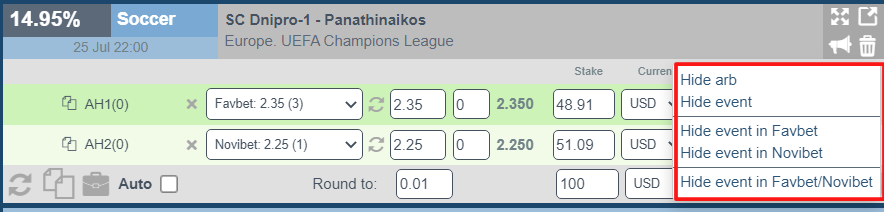
You can exclude any of these choices from the listings as needed. The number of hidden arbs, events, and outcomes will be displayed in the lower left corner of our scanner. You can restore them if desired.